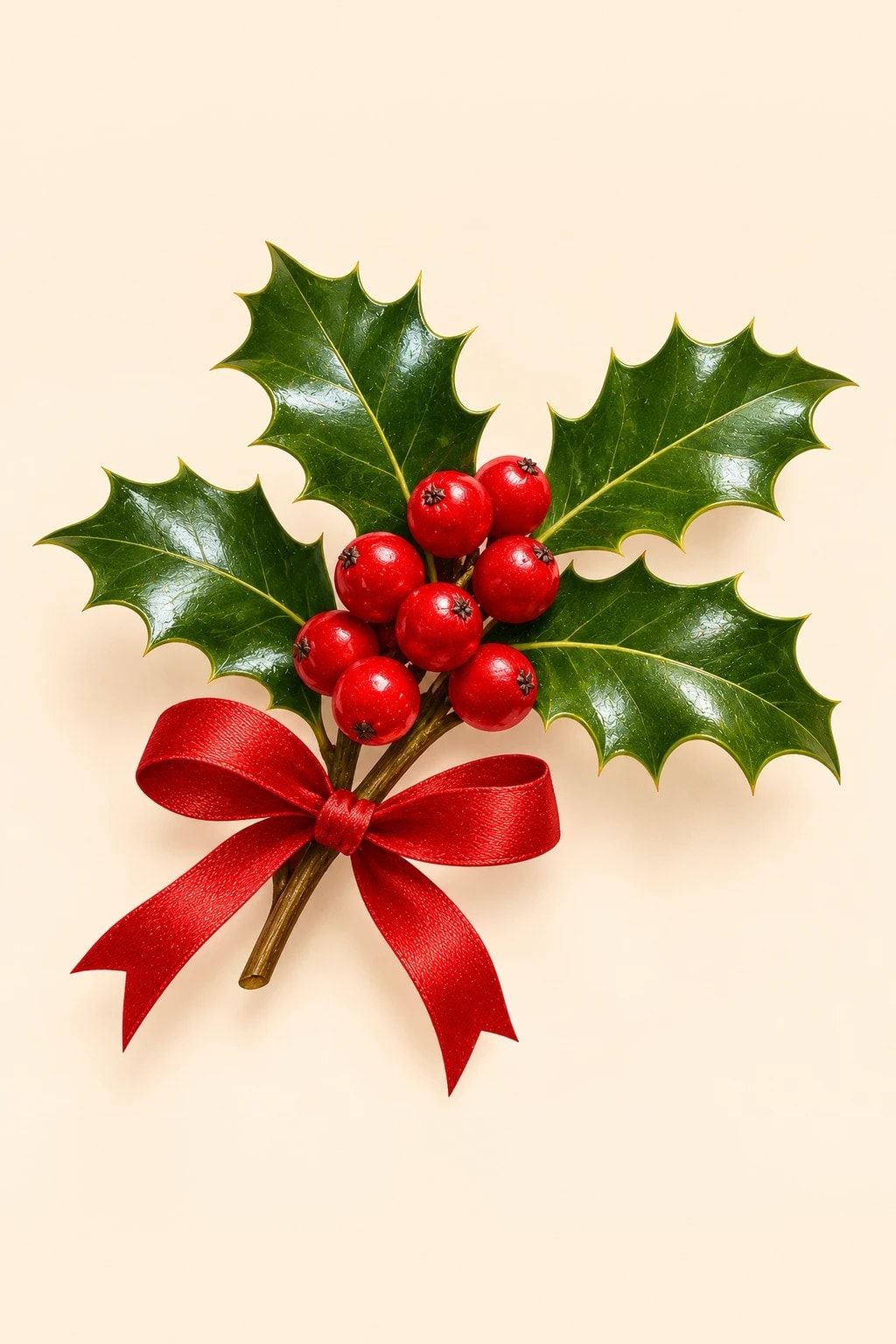
Christmas Wallpaper: 10 Free Aesthetic iPhone Backgrounds
Cozy, minimalist and pretty-in-pink backgrounds for your lock screen.
Every Christmas wallpaper here is a tall portrait illustration made for phones, from minimalist sage and holly designs to soft pinks, rich red and gold, cozy snowy scenes and a few dark backgrounds that keep the clock easy to read. Tap Download full size under any design to save it, or tap Save to keep it on Pinterest. Setup steps for iPhone and Android are below the gallery.

Find your Christmas wallpaper style
Pick an aesthetic, then jump straight to the designs that fit it:
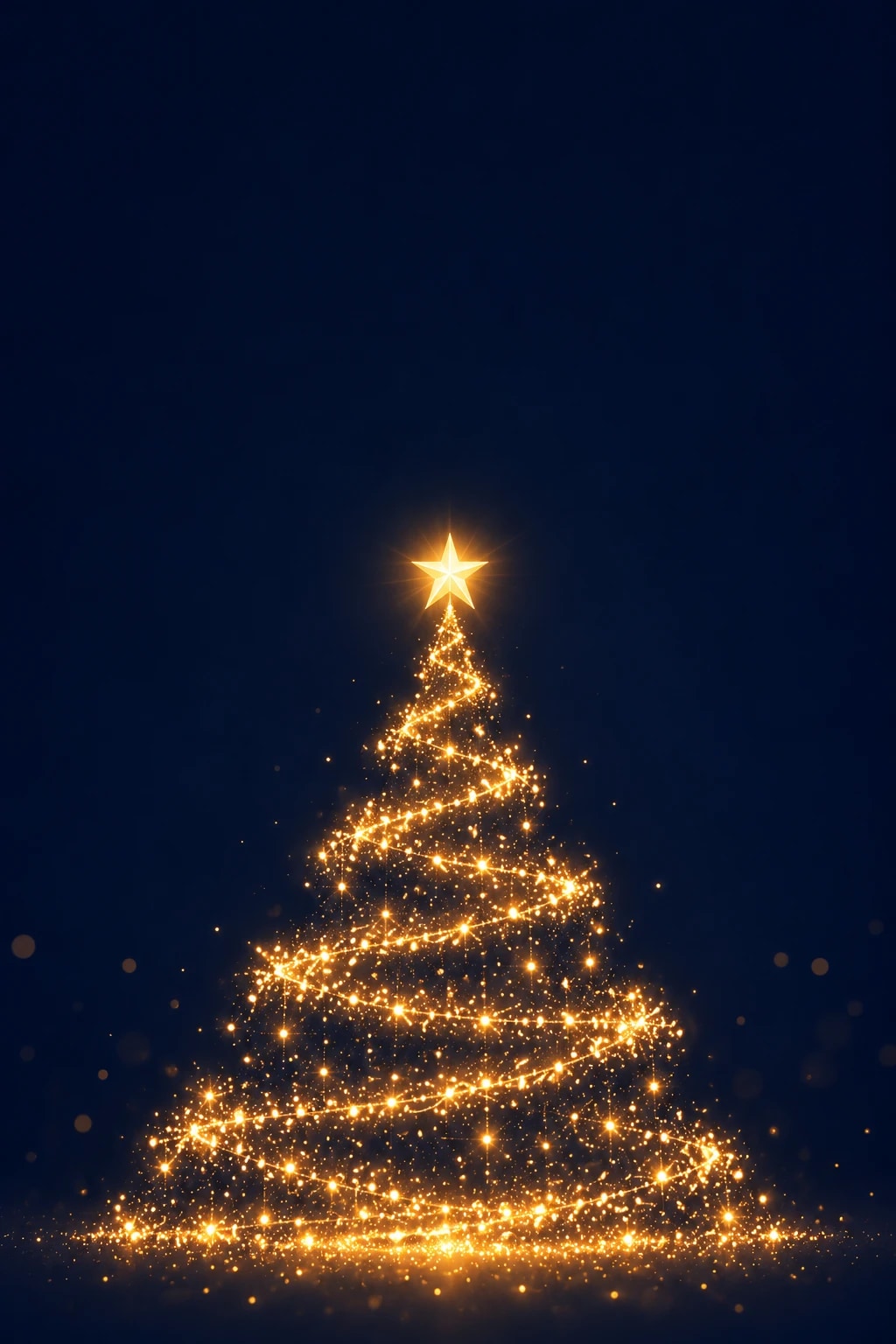
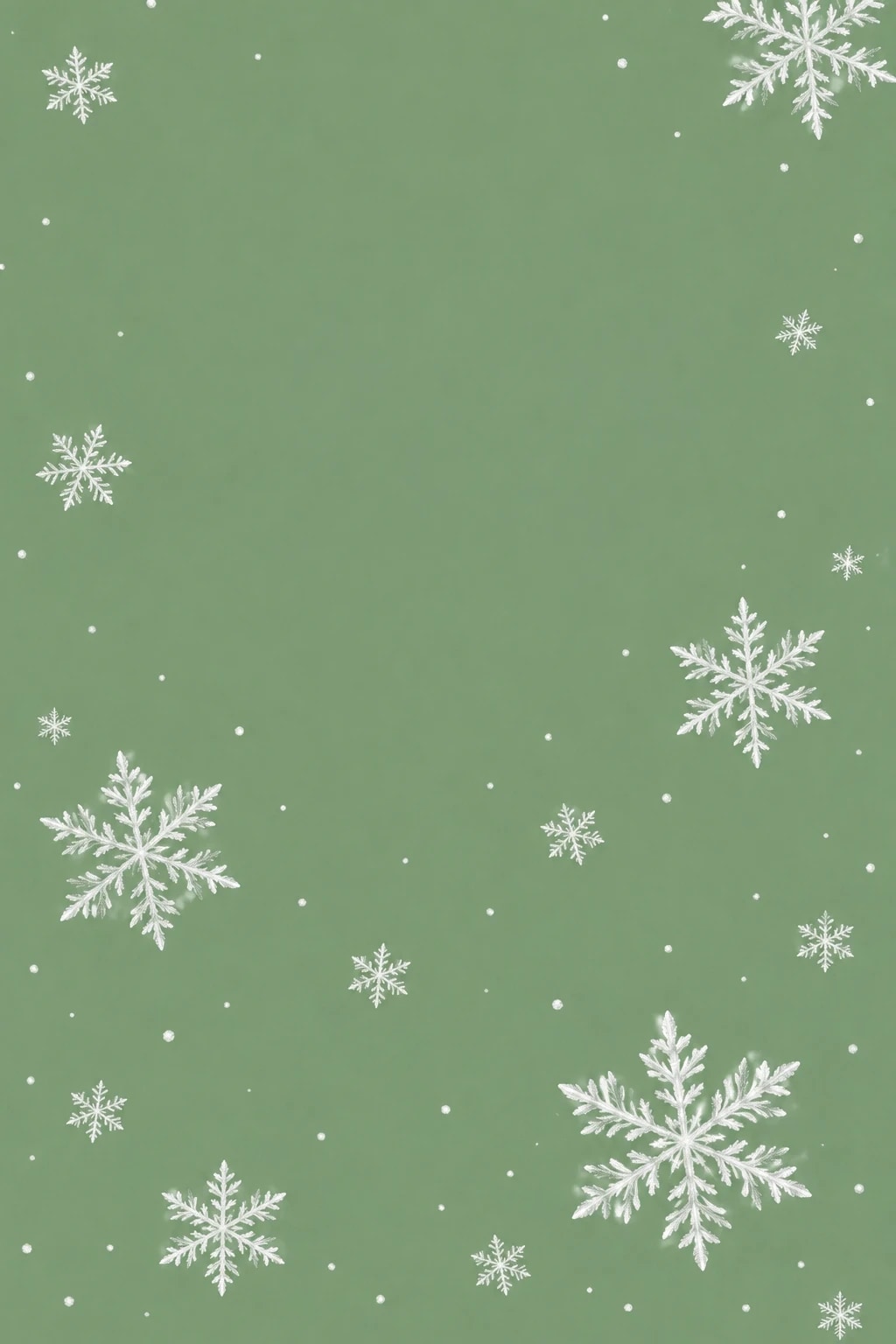
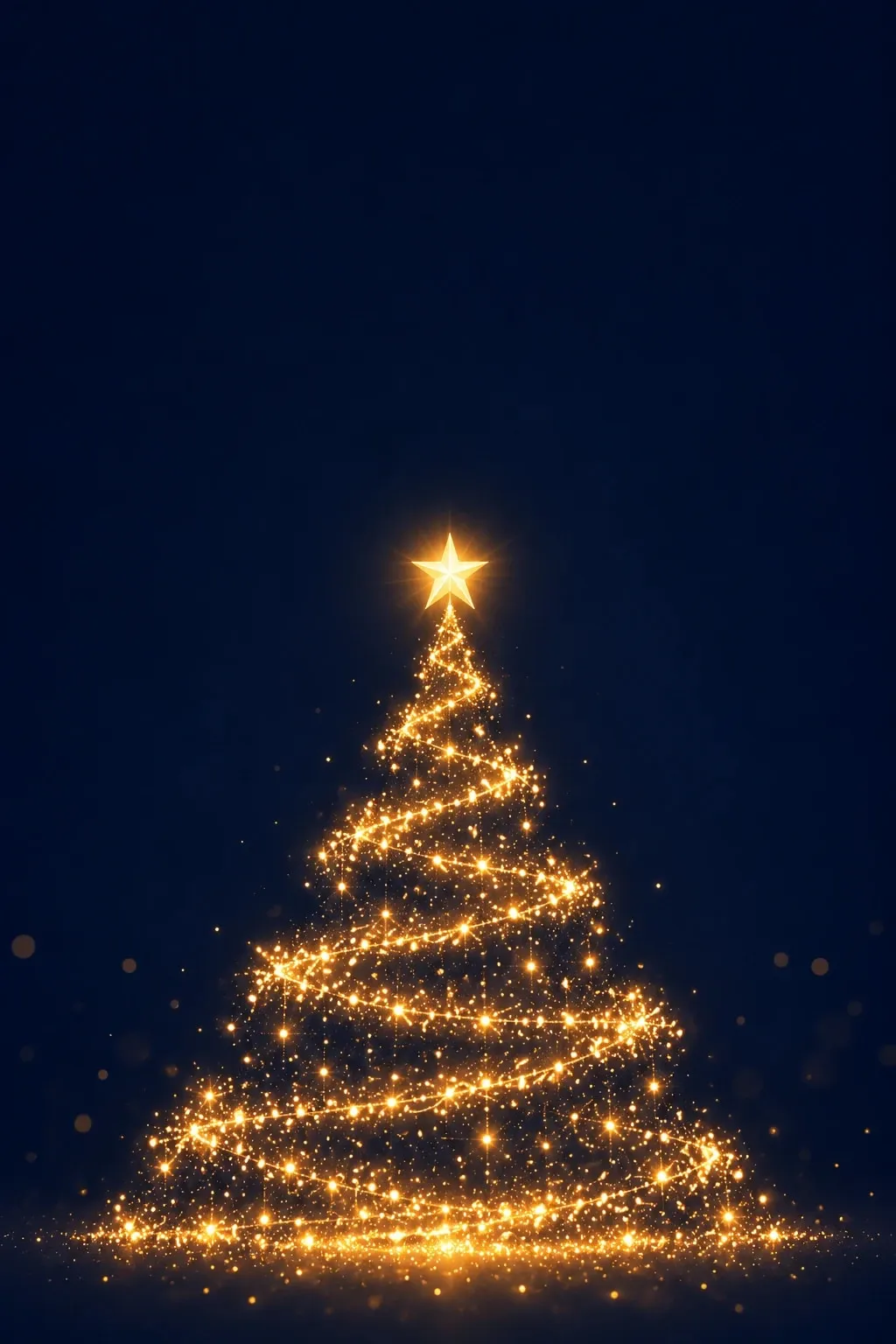
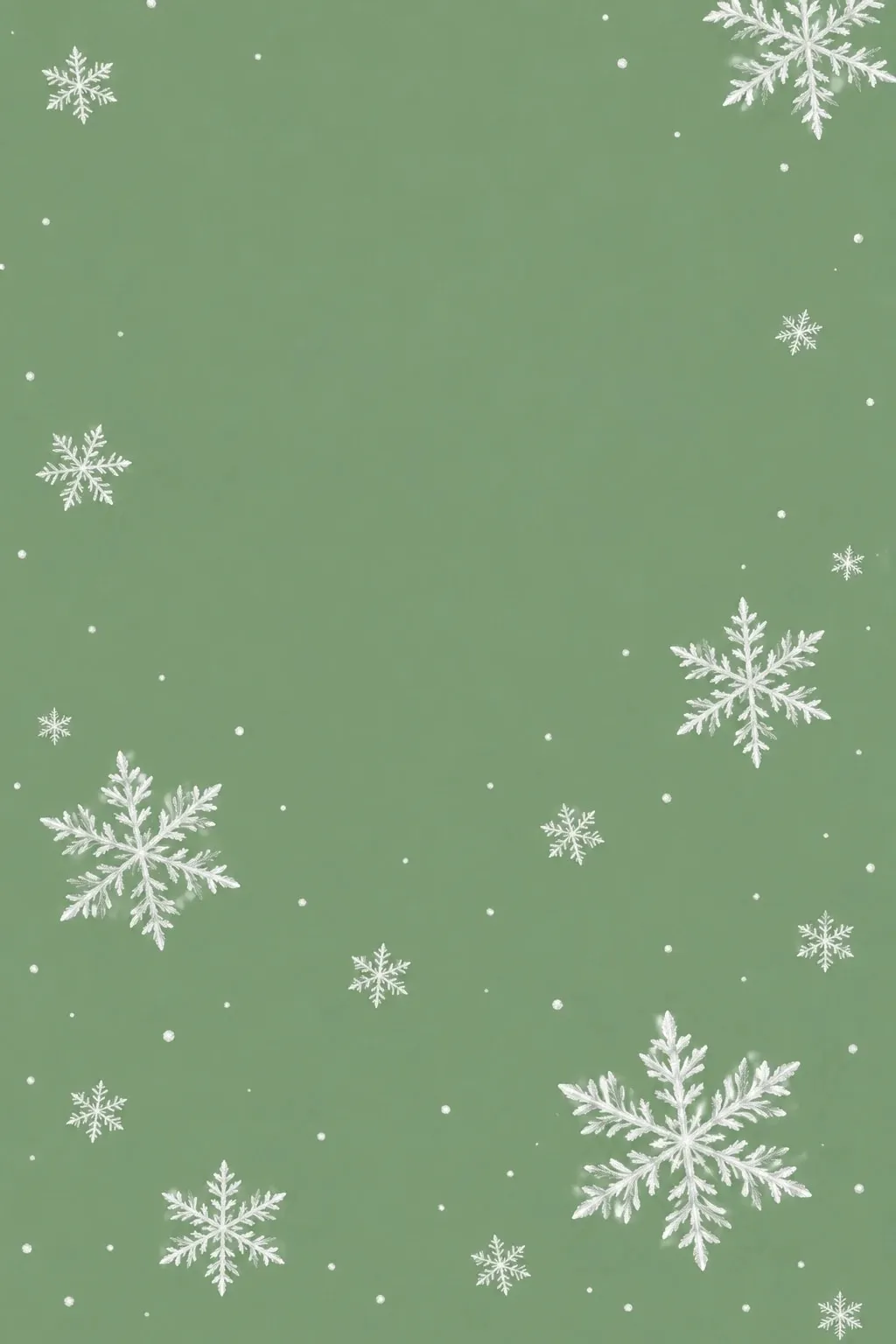
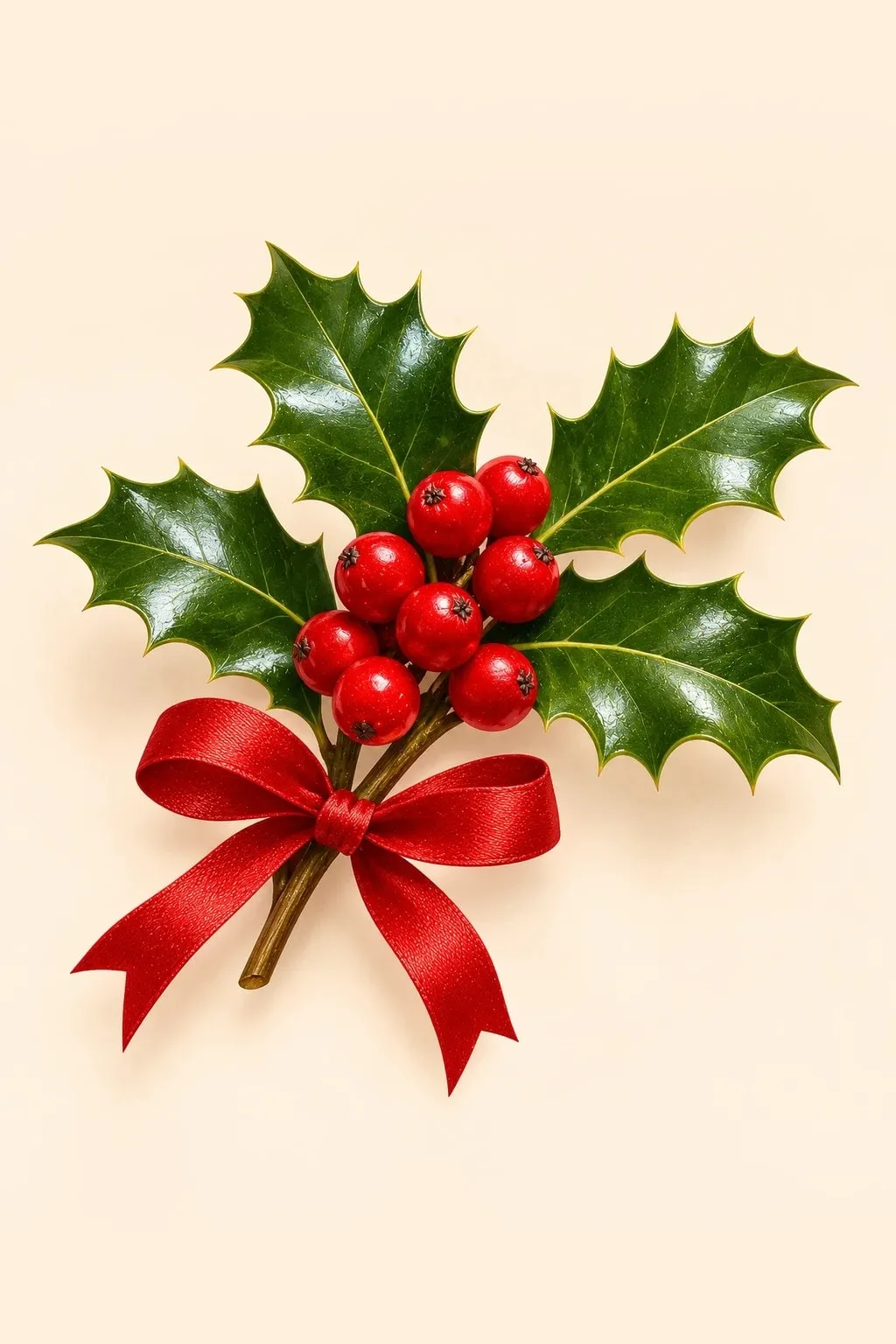
- Minimalist: snowflakes on sage, holly and red bow and the golden light tree on navy, with plenty of empty space for the clock and app icons.
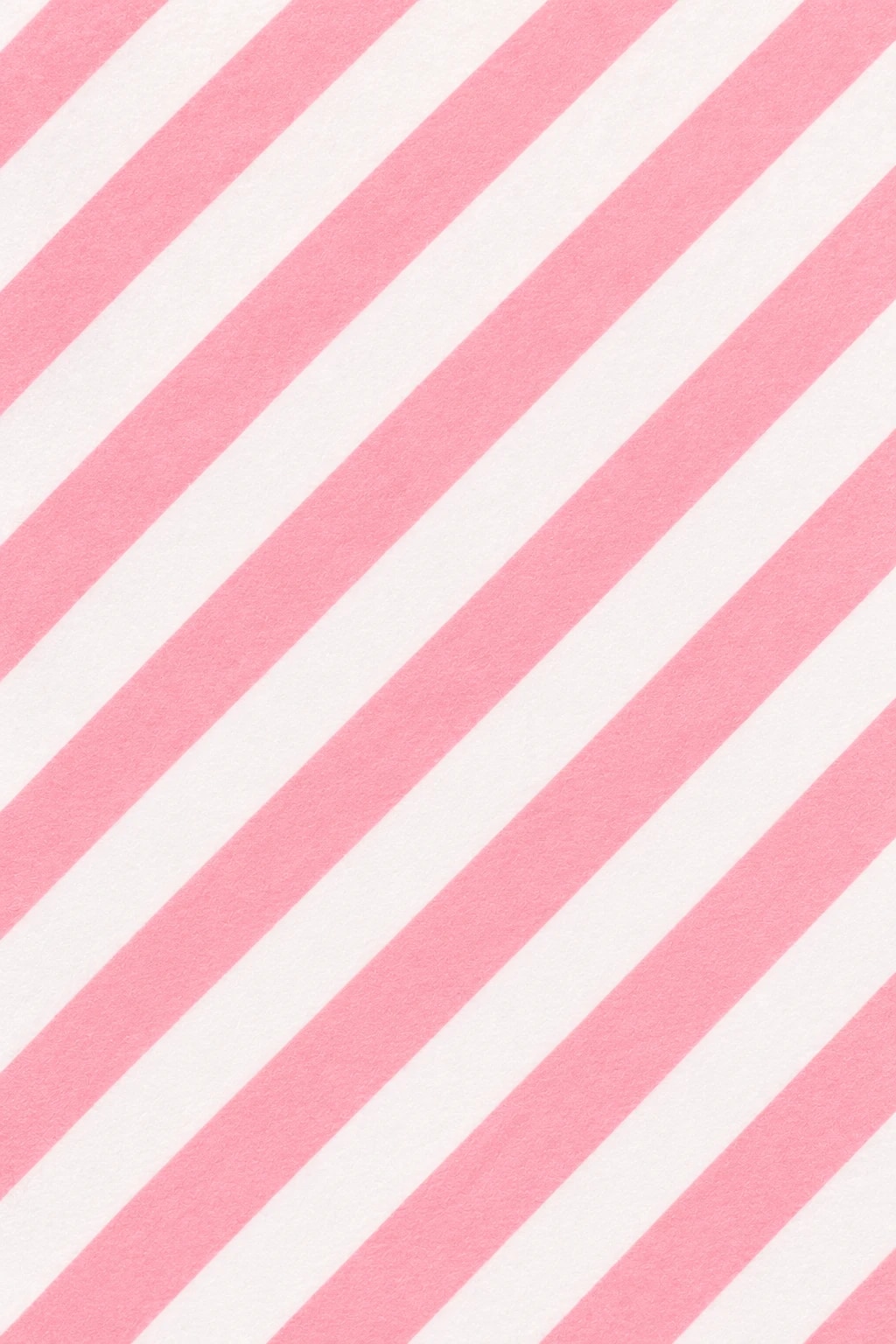
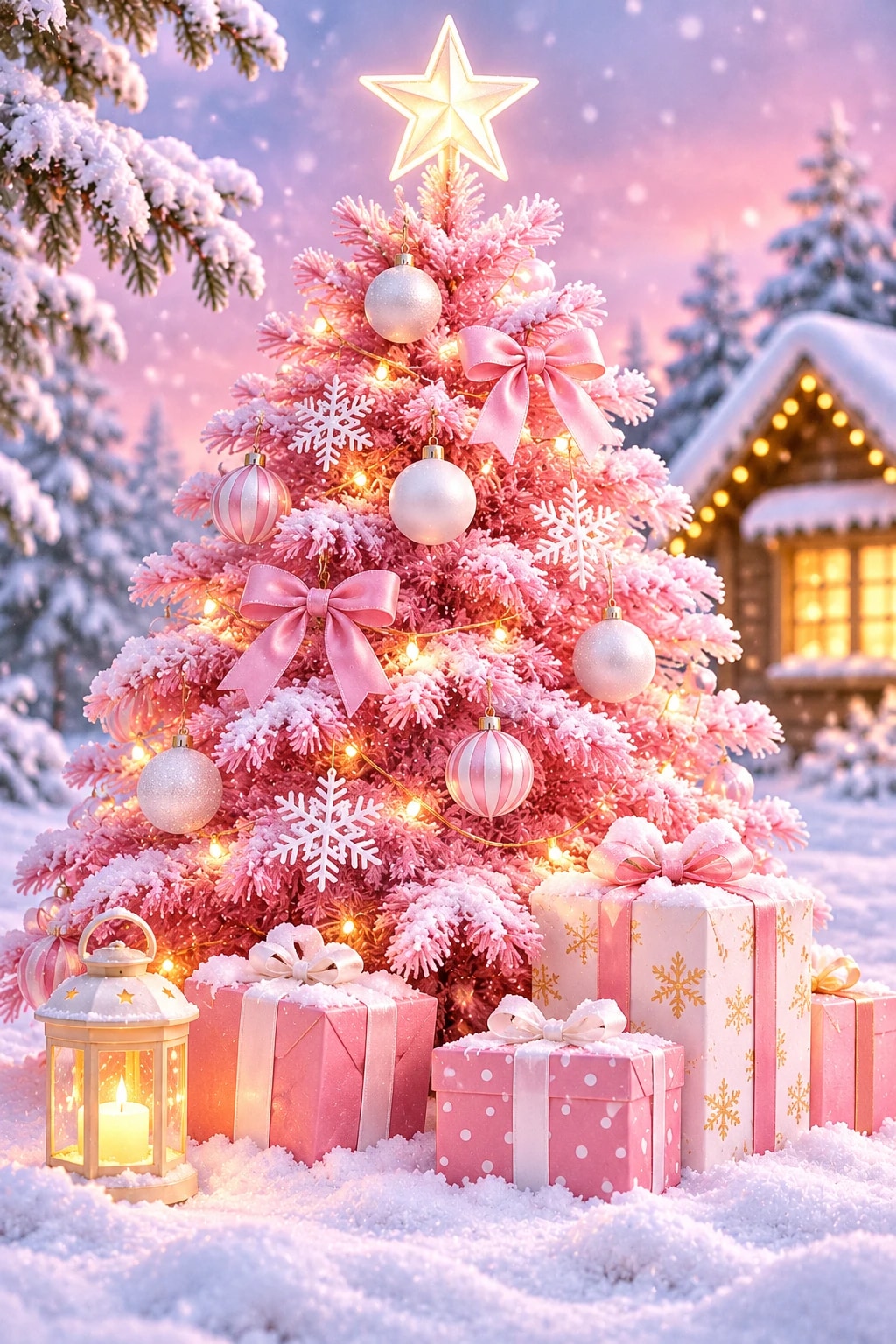
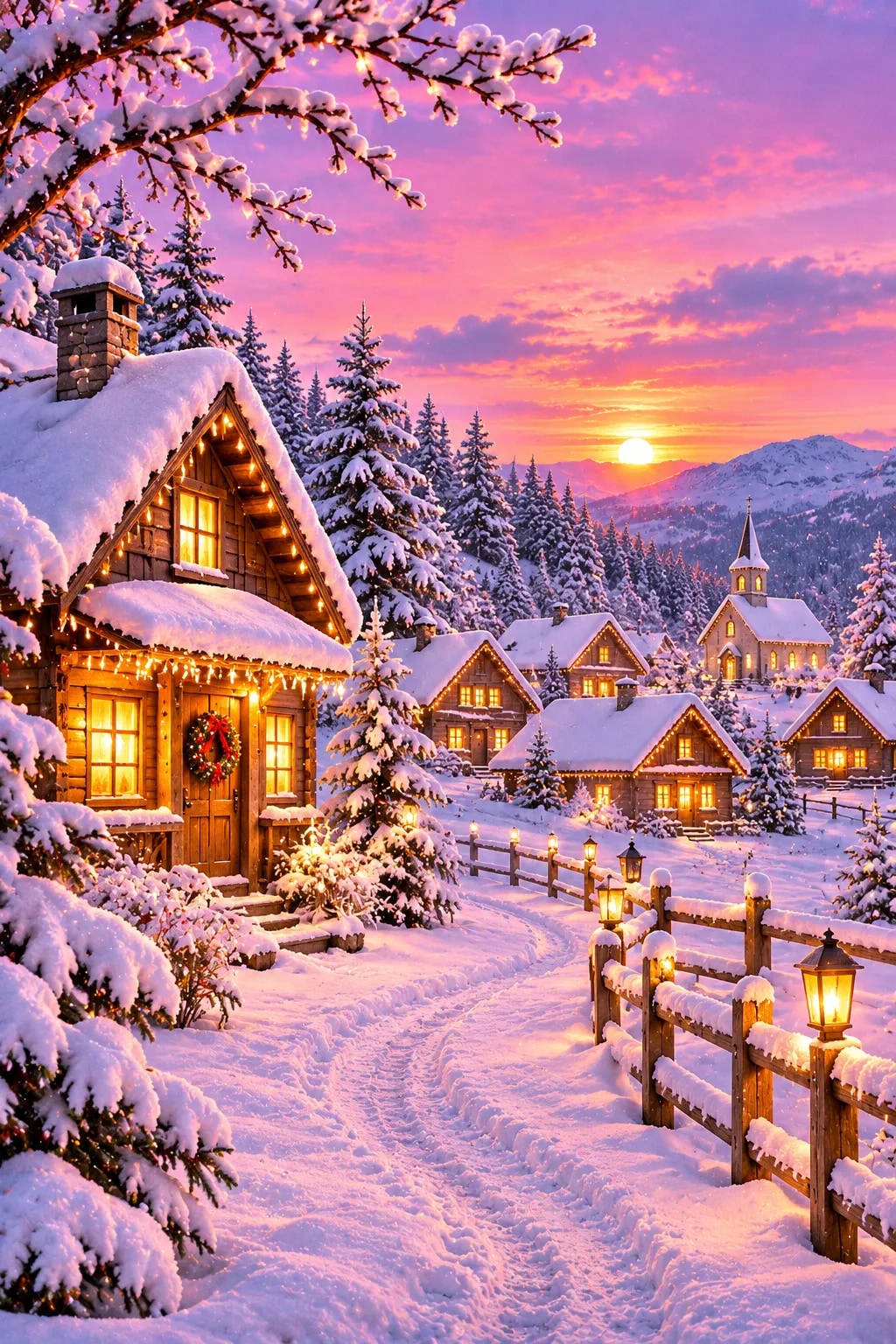
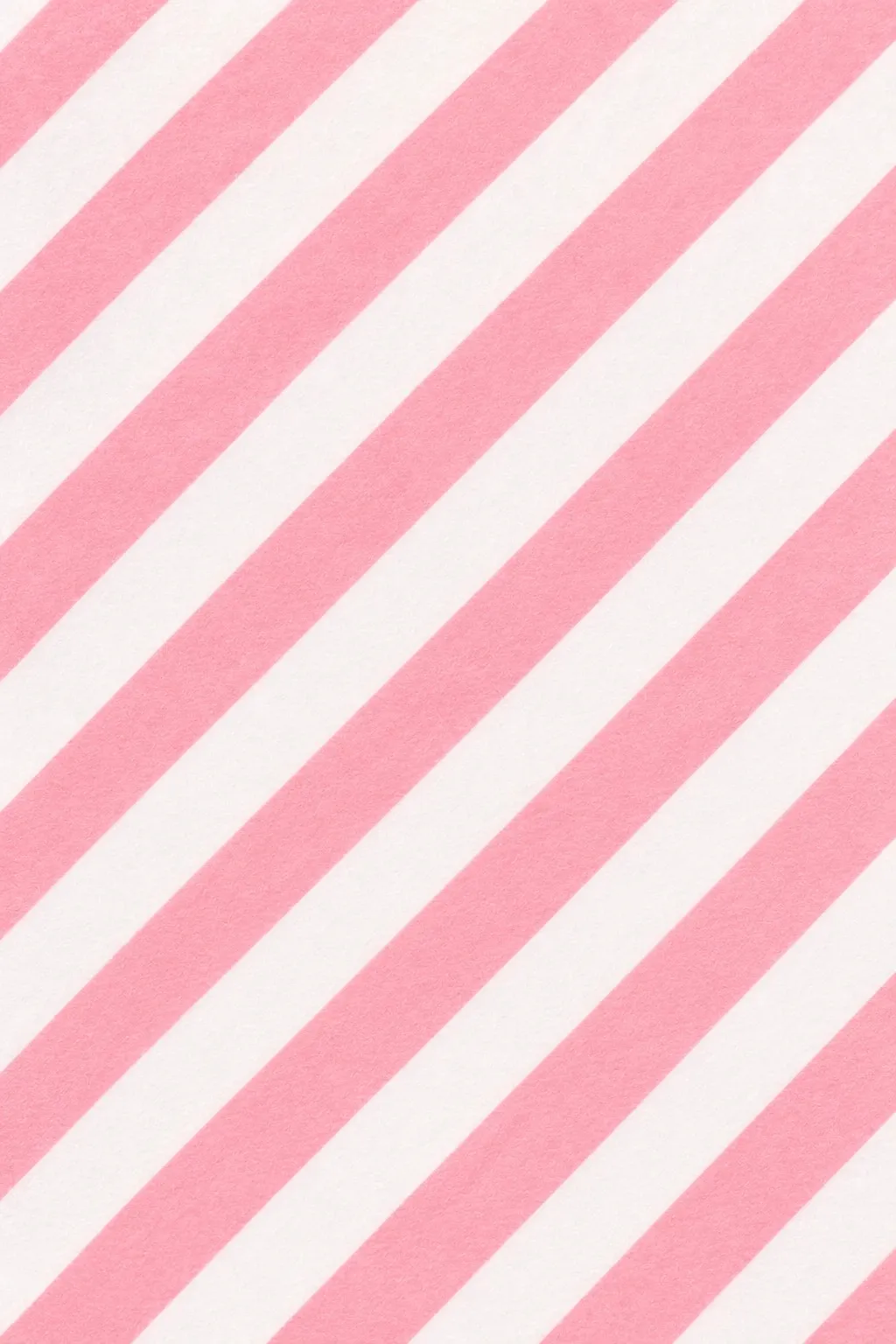
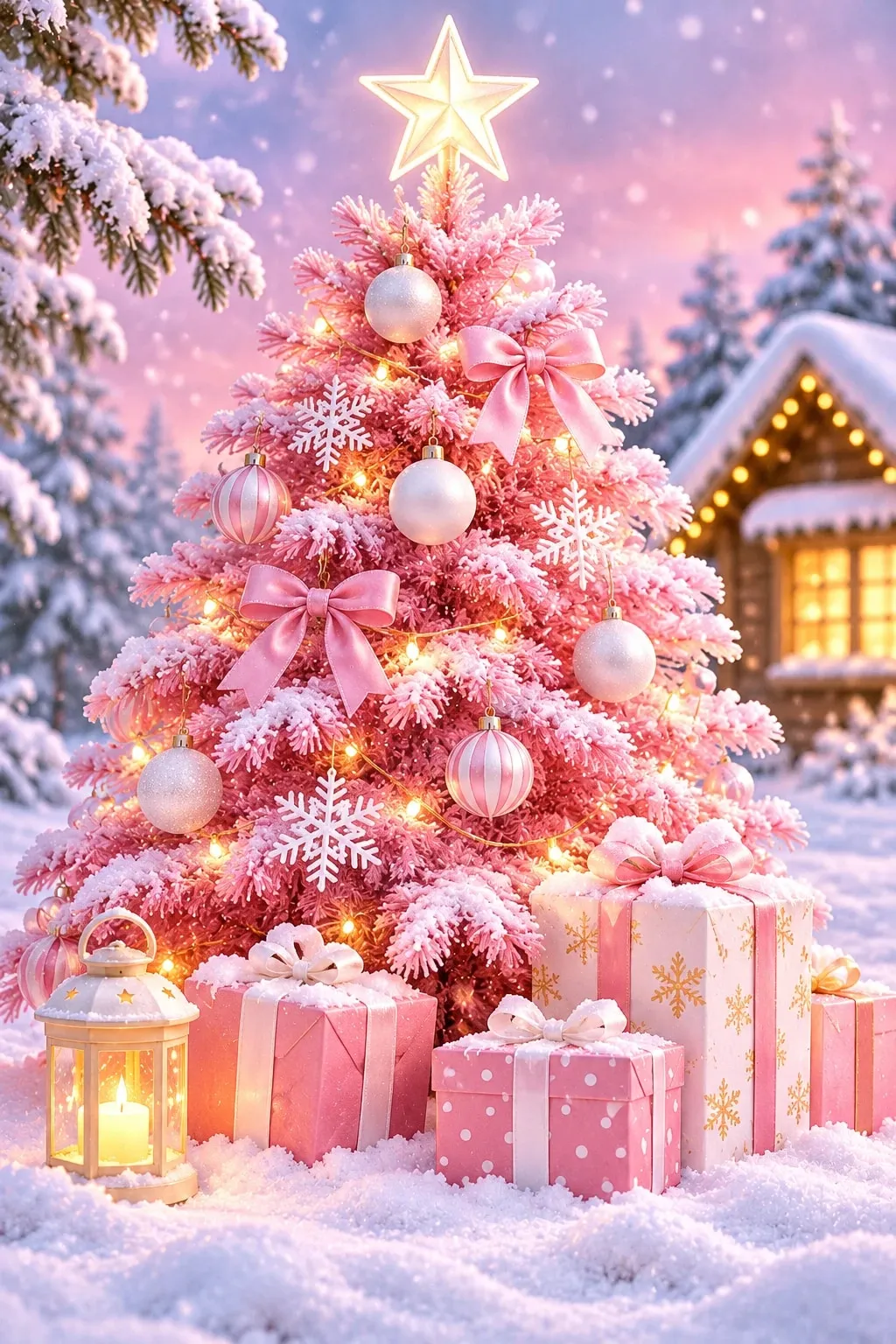
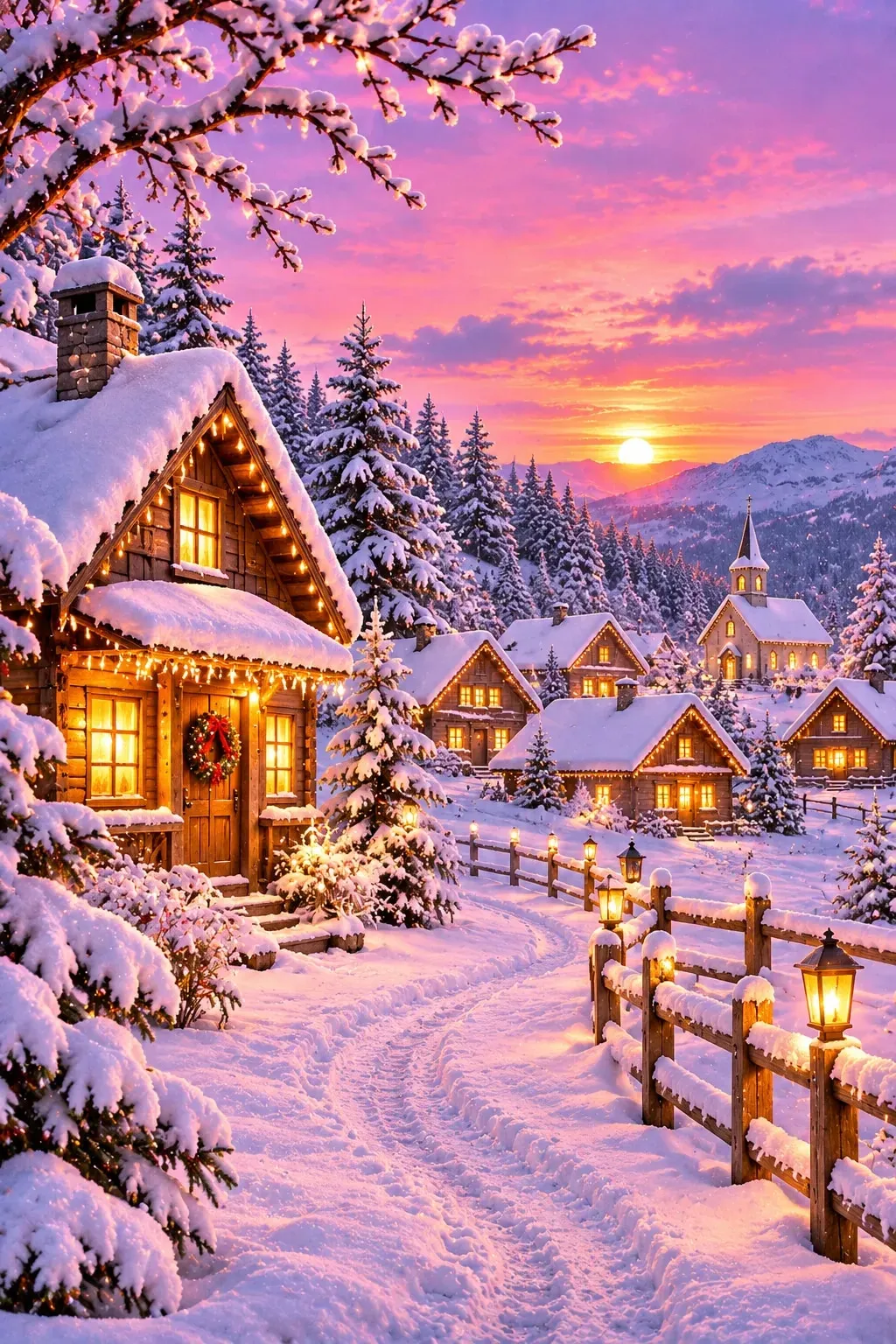
- Pink and pastel: candy cane stripes, the pink Christmas tree and the snowy village at sunset. Soft and sweet, but still festive.
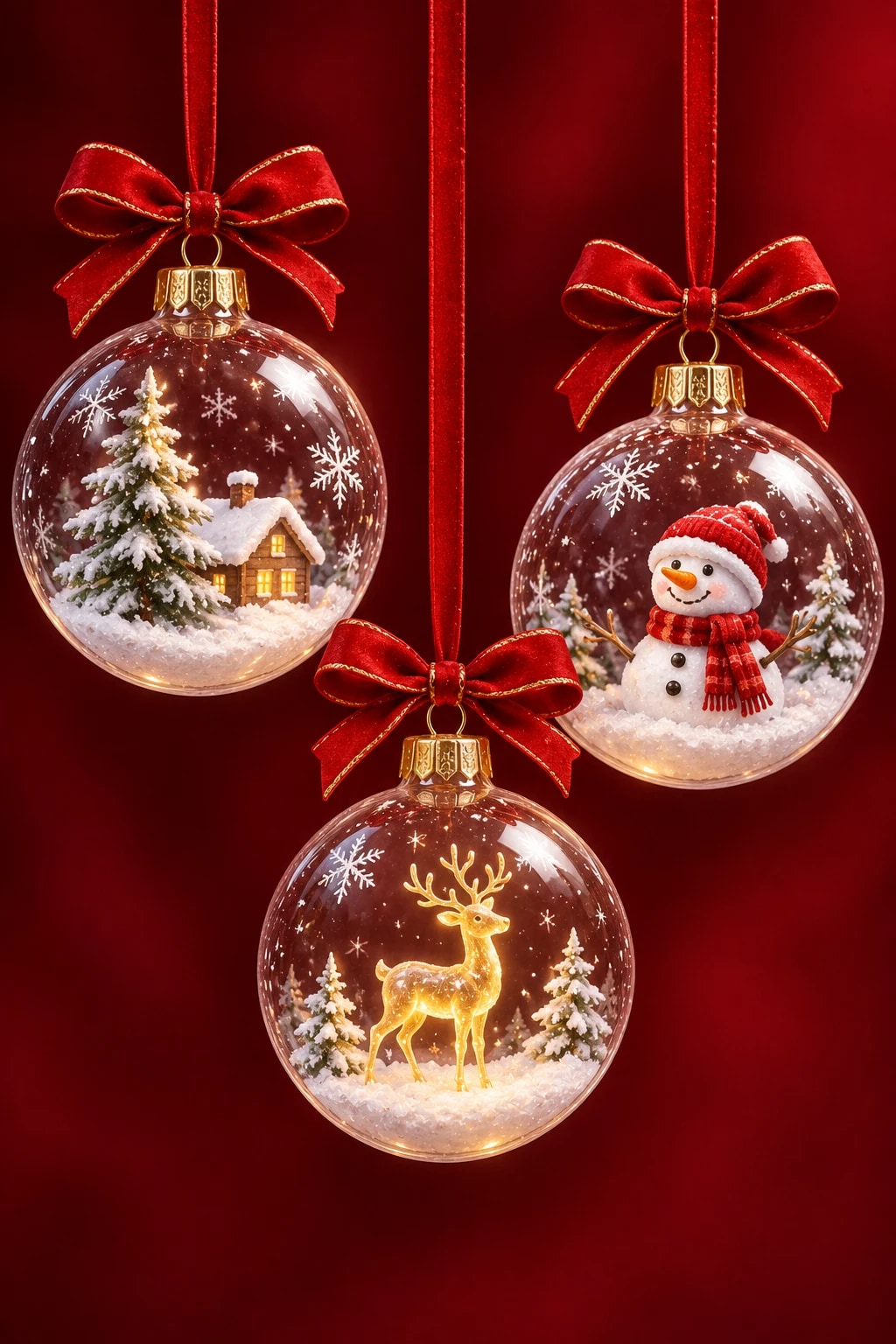
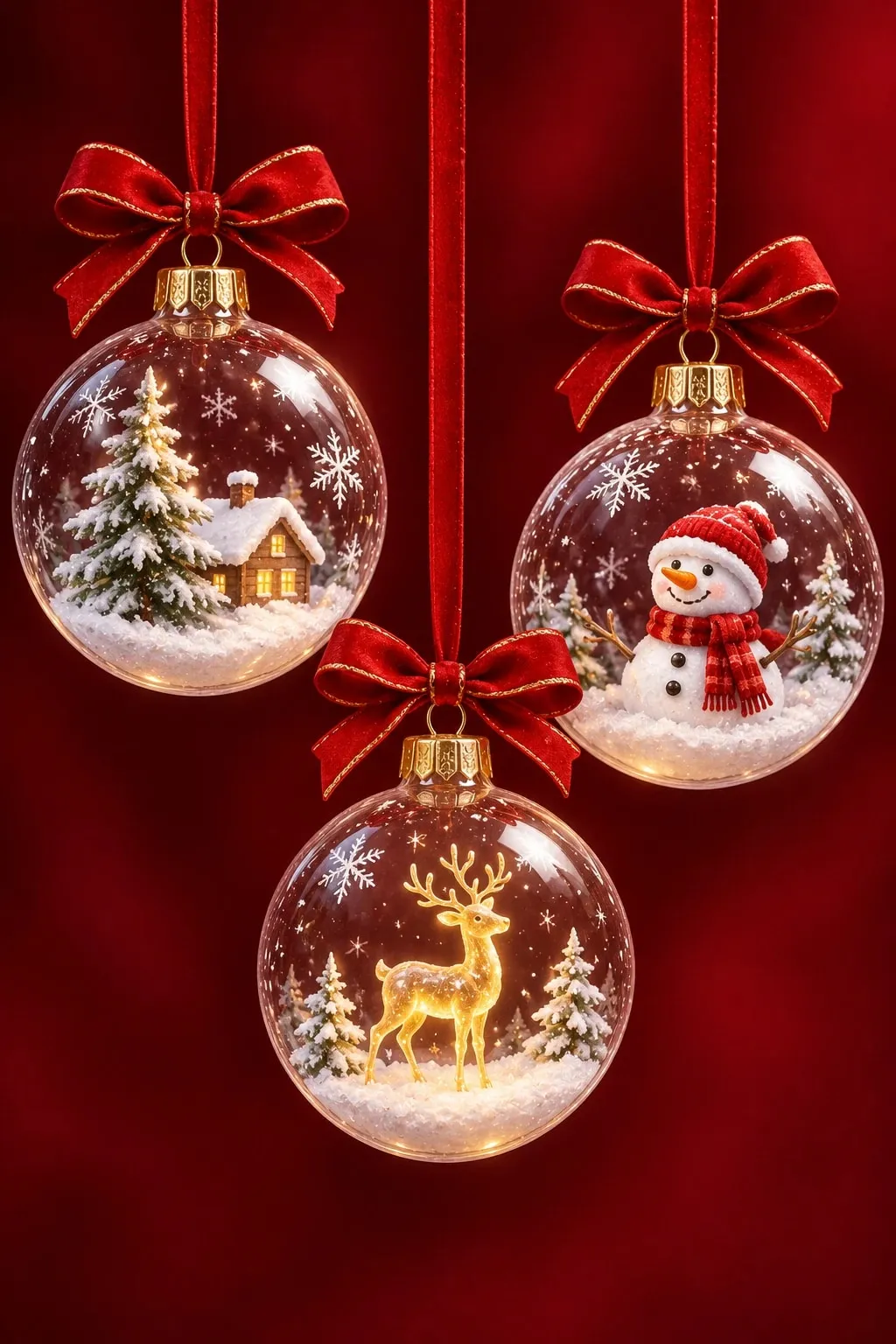
- Classic red and gold: the gold bow on red velvet and the snow globe ornaments. Rich and traditional, like a wrapped gift.
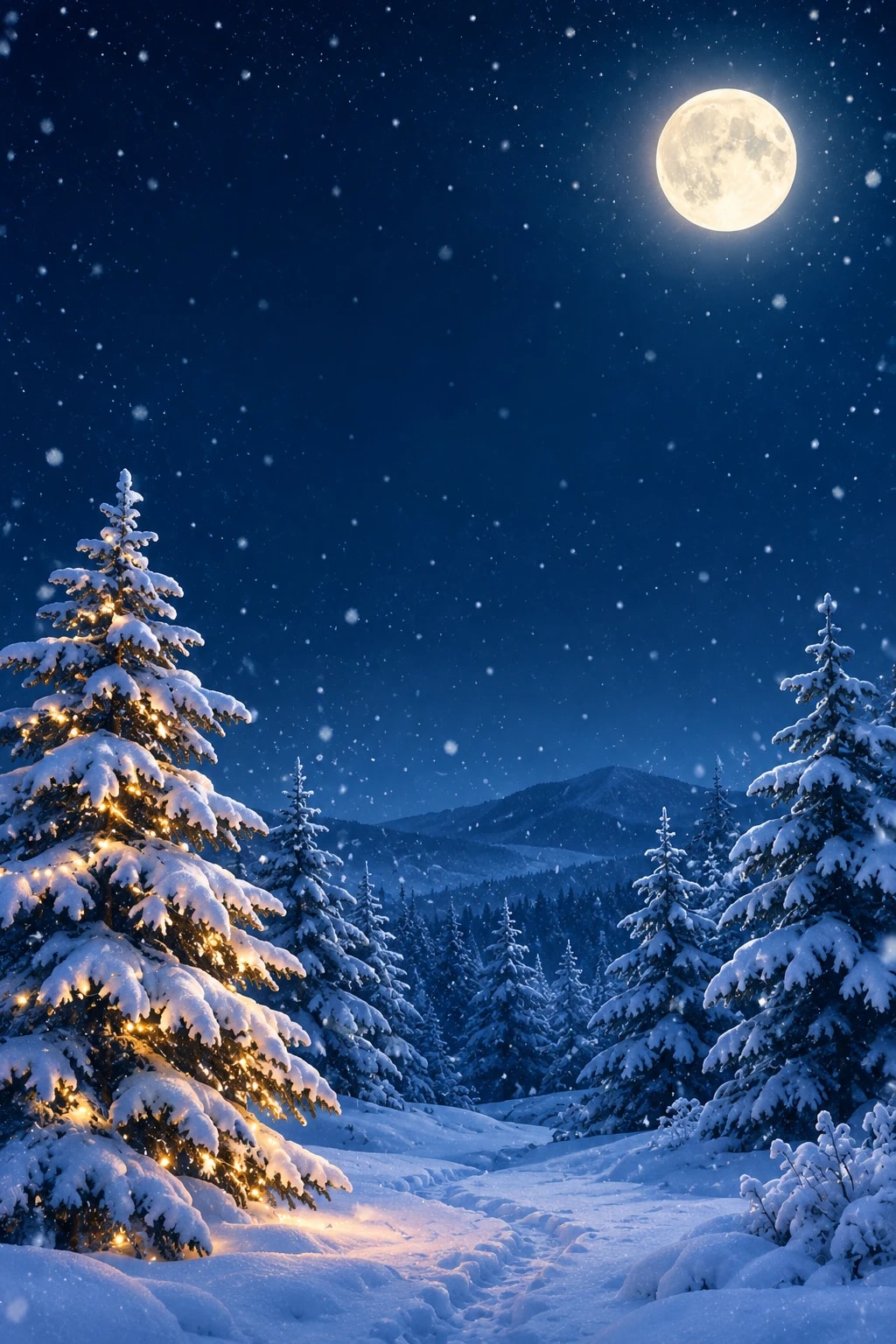
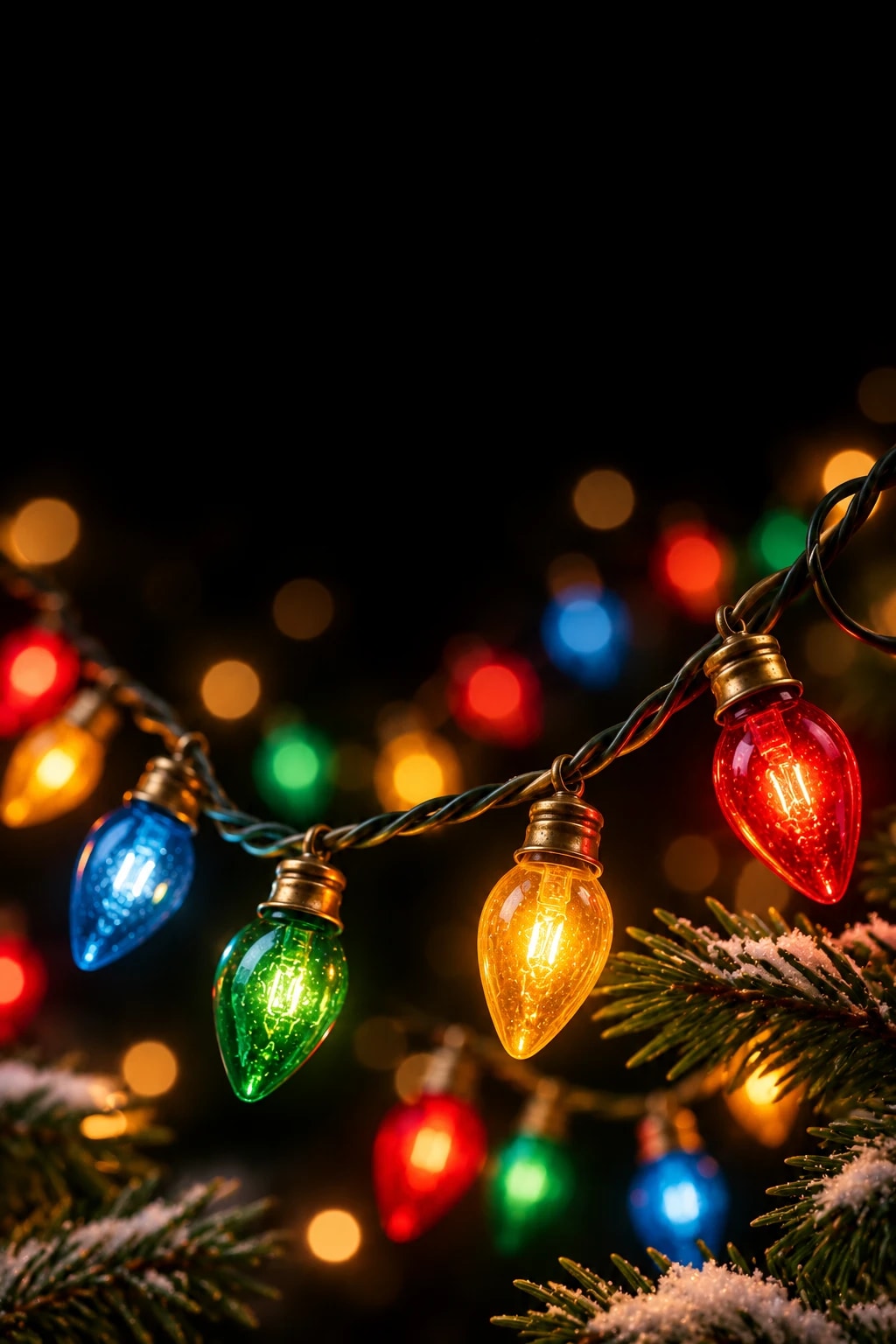
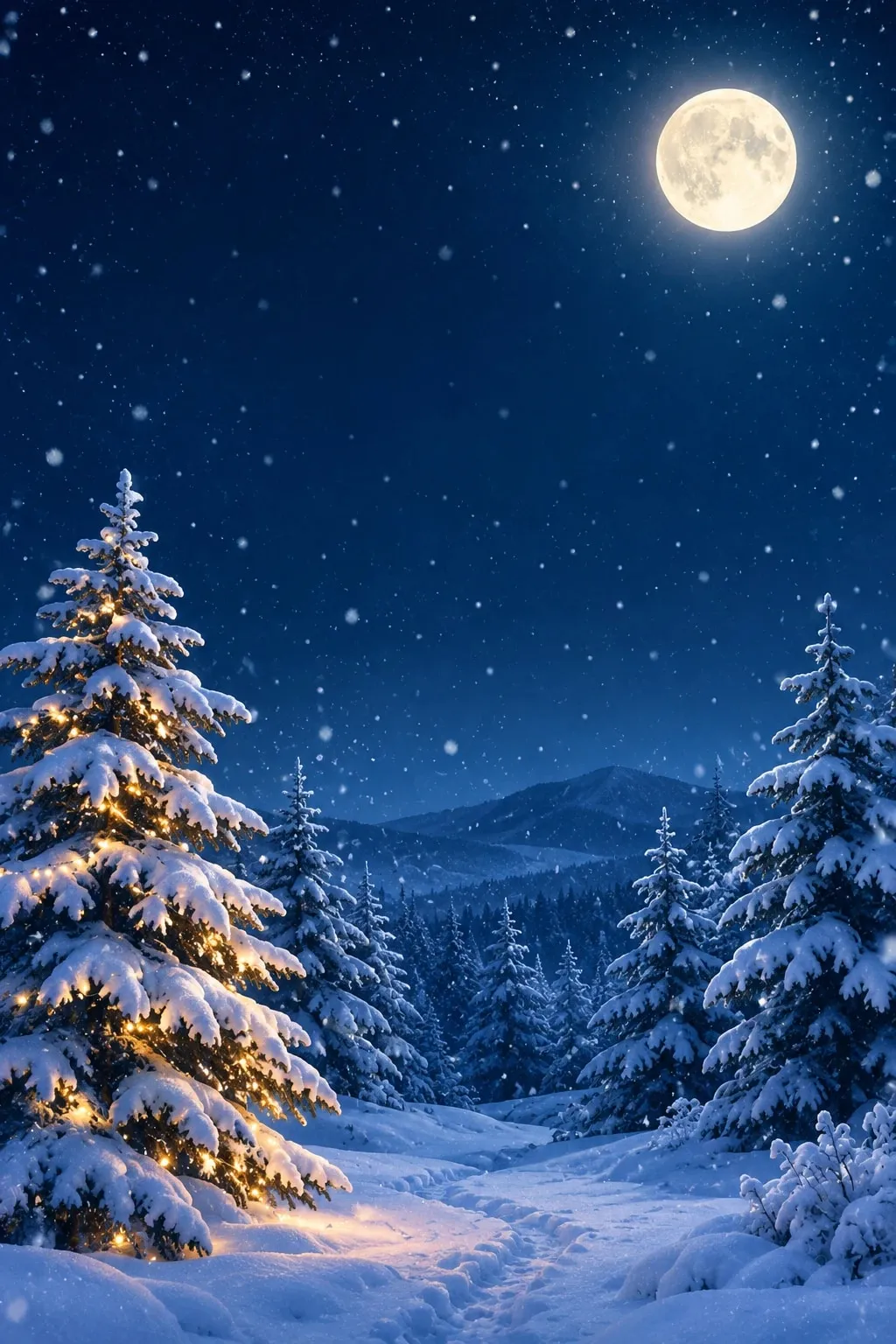
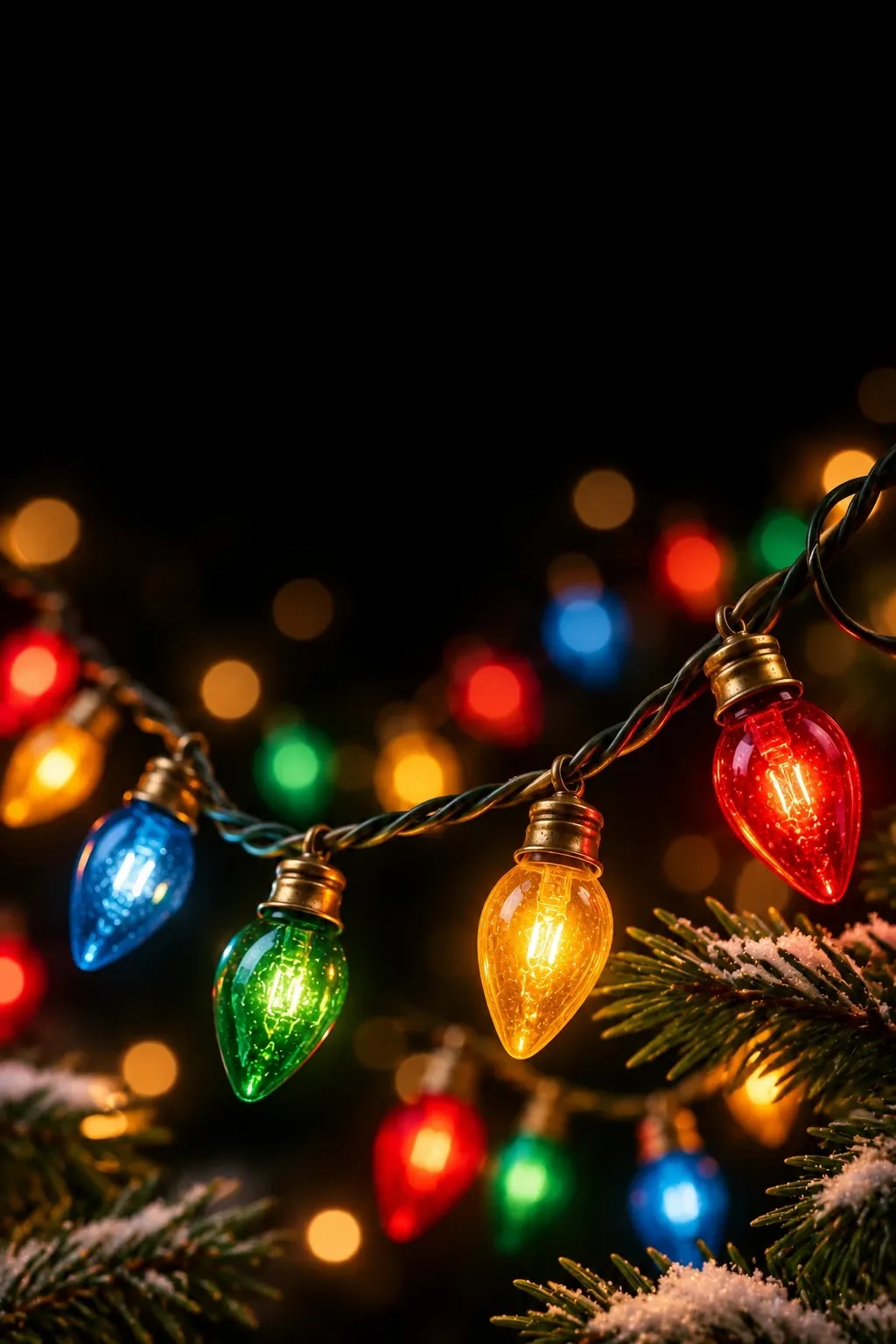
- Cozy and nostalgic: the moonlit snowy pines and vintage string lights, like a quiet snowy night or the tree you grew up with.
How to set a Christmas wallpaper on iPhone
These steps work on iOS 16 and later, though menu wording can differ slightly between versions.
- Tap Download full size. If Safari asks, choose View, then press and hold the image and tap Save to Photos. (If it lands in the Files app, open it and tap Share > Save Image.)
- In Photos, open the image and tap Share > Use as Wallpaper. Or press and hold the lock screen, tap + (or go to Settings > Wallpaper > Add New Wallpaper) and choose Photos.
- Pinch and drag to position the design, then tap Add.
- Choose Set as Wallpaper Pair for both screens, or Customize Home Screen to put something plainer behind your apps.
How to set a Christmas wallpaper on Android
Menu names vary by brand and Android version, but most phones work like this:
- Tap Download full size. The image saves to your Downloads folder and usually appears in your gallery app.
- Open it in Gallery or Google Photos, tap the three-dot menu and choose Set as wallpaper (Google Photos may say Use as).
- Pick Lock screen, Home screen or both, adjust the crop and confirm.
You can also press and hold an empty spot on the home screen, open the wallpaper settings (Wallpaper & style on Pixel phones) and choose the image from your photos.
Make it fit without cropping out the best part
The downloads are tall portrait images (2:3, 1024 x 1536 pixels), but most current phones have an even taller, narrower screen. To fill it, the phone trims about a third of the width, roughly 15% from each side, so it’s worth checking what stays in view.
- The main subject stays put on the gold bow (#1), golden light tree (#3) and pink tree (#8), which are centered.
- Patterns work at any crop: the candy cane stripes (#4) and sage snowflakes (#5).
- Scenes with detail near the edges need a quick drag: the moonlit pines (#2), snow globe ornaments (#6), vintage lights (#7) and snowy village (#9). Slide the image sideways while setting it to choose which side stays in view.
- The holly (#10) is wider than the screen, so its outer leaf tips get trimmed wherever you place it. Keeping the berries in the middle gives the most balanced look.
- Keep zoom to a minimum. Pinching out enlarges the image even more and makes it look softer.
Lock screen tips: clock, widgets and Depth Effect
- Leave room for the clock. Dark, open space at the top keeps a white clock easy to read, as in the moonlit pines (#2) and golden tree (#3).
- Darken the clock on light designs. A white clock is hard to read on the candy cane stripes (#4), pink tree (#8), snowy village (#9) and holly (#10). On iPhone, press and hold the lock screen, tap Customize, tap the clock and pick a darker color. Many Android phones also let you change the clock color when you edit the lock screen.
- Plan for widgets. On iPhone they usually sit just under the clock and hide whatever is there. The red velvet (#1) and vintage lights (#7) designs have plain tops with room for both.
- Try Depth Effect. On iPhone it can let a subject overlap the clock, and it works best with one clear subject on a simple background. The holly (#10) is the best candidate here, since its top leaves reach the bottom of the clock area. The pink tree’s star (#8) reaches the clock too, but the busy background means iOS may not offer the effect. Switch it on from the three-dot button while editing the lock screen. iOS decides which images qualify, and on many versions adding widgets under the clock turns it off.
- Keep the home screen calm. Pair a busy lock screen with a solid color from the same palette, or turn on Blur under Customize Home Screen, so app icons stay legible.
Dark Christmas wallpapers and battery life
The golden light tree on navy (#3) and the vintage bulbs on black (#7) are the two darkest designs, with the moonlit pines (#2) close behind. On OLED screens, black pixels are switched off and very dark pixels use little power, so a darker wallpaper can trim power use slightly. On LCD screens the backlight lights the whole panel, so there’s no real difference. Either way, a white clock is easy to read on a dark background, especially at night.
When to switch from Christmas to winter
The bow, ornament, string light and tree designs feel most at home from Thanksgiving weekend through New Year’s. The moonlit pines (#2), sage snowflakes (#5) and snowy village (#9) read as wintry rather than Christmassy, so they can stay on your phone through January, and the pink stripes (#4) can carry you toward Valentine’s Day.
Match your phone to the rest of your holiday look
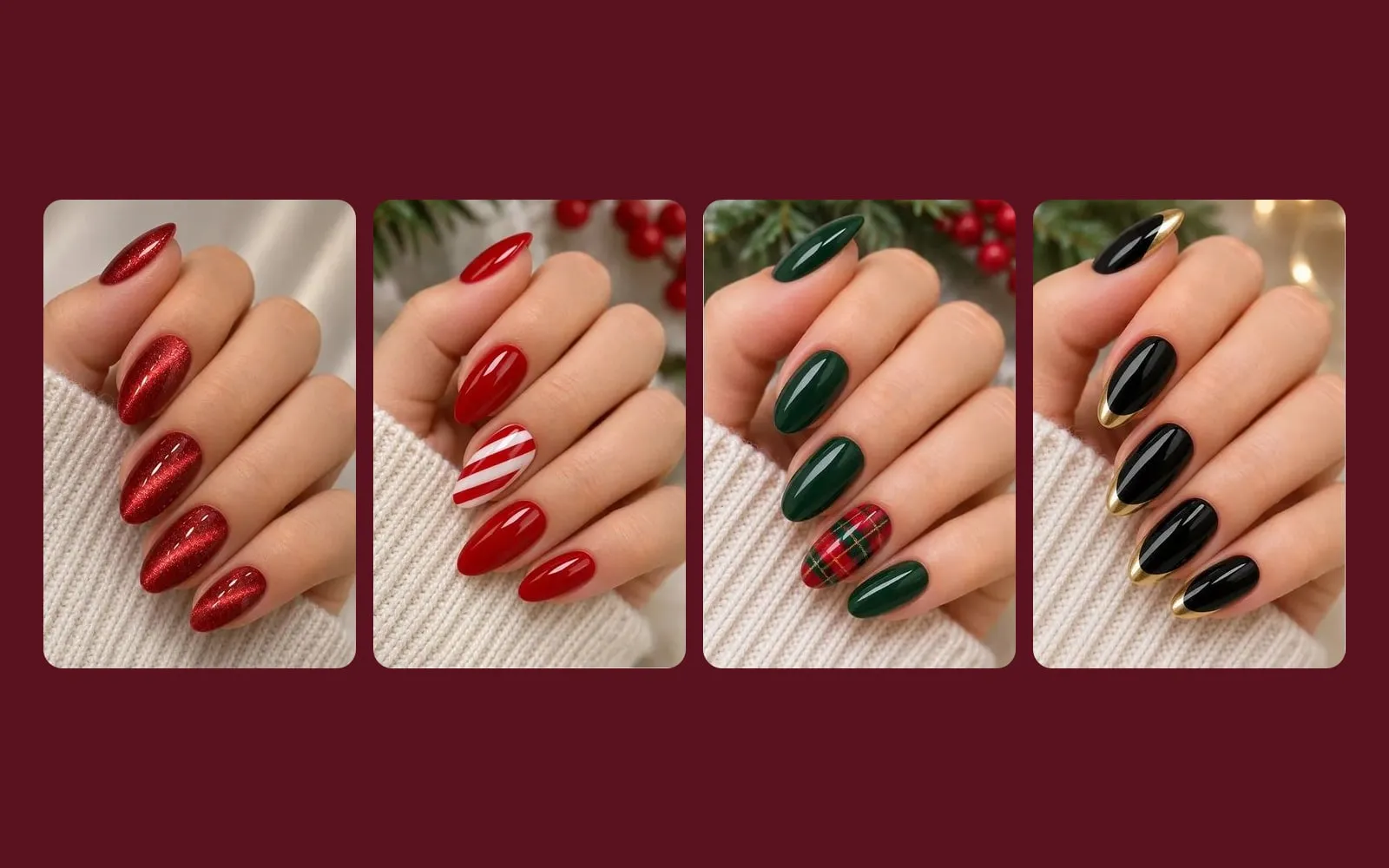
- Pair the gold bow on red velvet (#1) or the pink tree (#8) with a manicure from these Christmas nail ideas, which include velvet red and gold chrome looks.
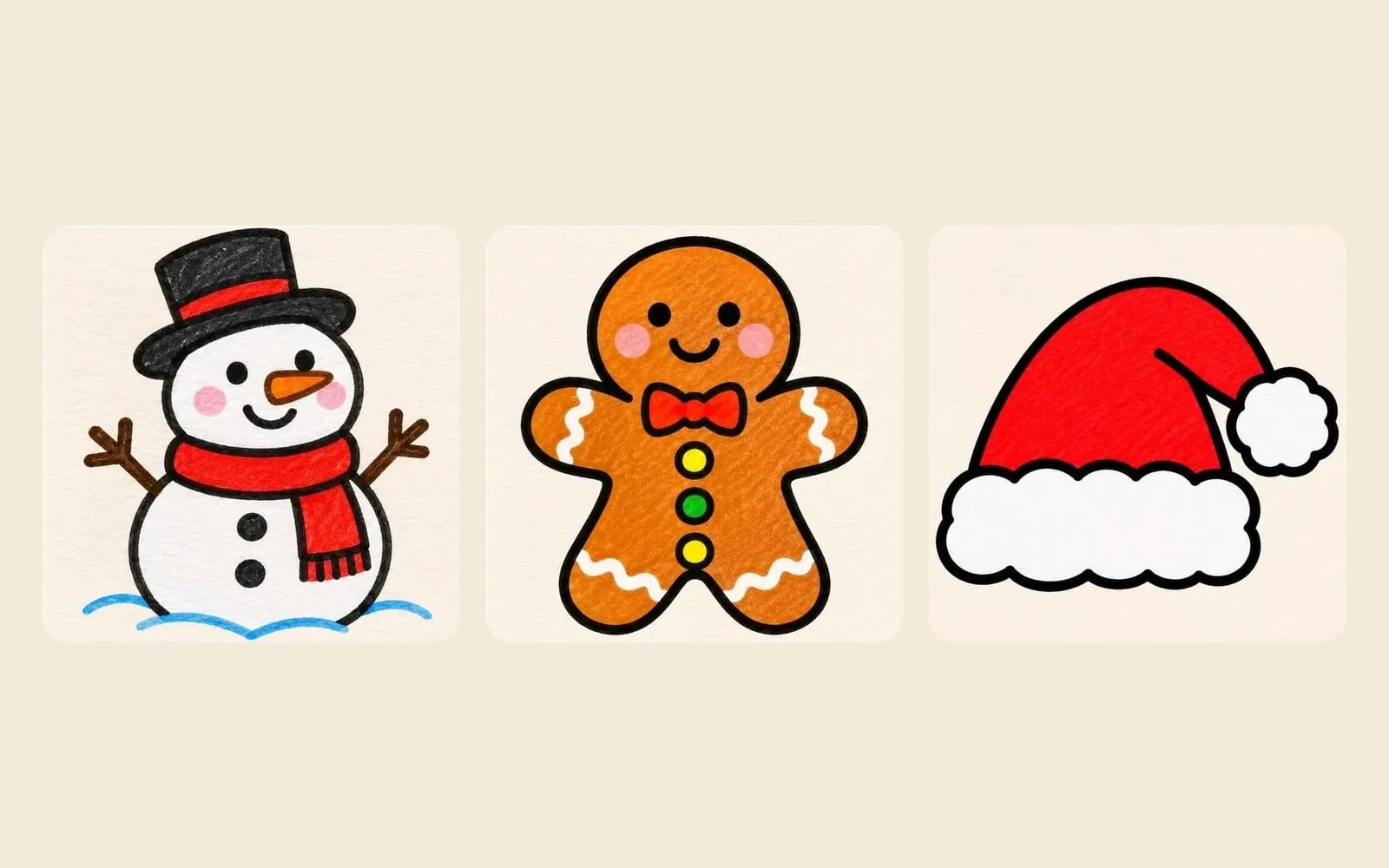
- Sketch a candy cane or ornament with these easy Christmas drawing ideas, then photograph it for a one-of-a-kind wallpaper.
- Kids can color a Christmas tree online with these free Christmas coloring pages, then save the finished picture as a tablet background.
Save it for later
Pin this to one of your boards so you can find it again when you need it.
Save to PinterestFAQ
Why does my Christmas wallpaper look a little soft?
These files are 1024 x 1536 pixels, while most recent phone screens are well over 2,000 pixels tall, so your phone enlarges the image to fill the screen. Up close, fine details can look slightly soft, and zooming in further while you set it makes that more noticeable. Leaving the zoom at its starting size keeps it as crisp as it can be.
Can I rotate several of these wallpapers automatically?
On iPhone, save the ones you like, press and hold the lock screen, tap the + button and choose Photo Shuffle, then select your photos by hand. You can choose how often it changes, such as daily, hourly, on lock or on tap. Some Android phones, including many Samsung Galaxy models, can also cycle through several gallery images on the lock screen; the option and its name vary by brand.
Can I use these wallpapers on an iPad or other tablet?
Yes. Held upright, a tablet shows nearly the whole image, with a little trimmed from the top and bottom. Turned sideways, it shows roughly the middle half, so the patterns (#4 and #5) and the centered golden tree (#3) hold up best.
Are these Christmas wallpapers free to use?
Yes, they are free for personal use as a phone or tablet background. Please don't resell them or reupload them as your own.